


Uploading Instagram photos from a computer is simple once you know the available options. While Instagram was originally designed for mobile posting, users can now upload photos directly from desktop.
Business owners and social media managers often prefer desktop publishing because most content is created and edited on computers.
This guide explains how to upload Instagram photos from a computer, the limitations of Instagram’s native uploader, and how scheduling tools like Hopper HQ make the workflow much easier.
Quick answer:
Yes, you can upload Instagram photos from a computer using the Instagram website.
However, the native uploader has limitations. It allows you to post individual images but does not provide advanced planning tools or bulk publishing workflows.
Many creators use desktop publishing tools like Hopper HQ to upload, organize, and schedule posts directly from their computer.
Can you upload Instagram photos from a computer?
Yes. Instagram allows users to upload photos and videos from a desktop computer through the web version of the platform.
You can upload images from:
• Windows PC
• Mac
• Chromebook
• any computer with a modern browser
However, Instagram’s native uploader is designed for simple posting and does not support advanced publishing workflows.
How to upload Instagram photos from a computer
Follow these steps to upload a photo to Instagram using the web version.
1. Open Instagram in your browser
Go to instagram.com and log into your account.
2. Click the Create button
At the top of the screen, click the Create button. This opens the upload window.
3. Select your photo or video
Choose the image or video file from your computer. Instagram supports common formats such as JPG and MP4.
4. Edit and crop your image
Instagram allows basic adjustments before publishing. You can crop, resize, and adjust image orientation.
5. Add your caption and hashtags
Write your caption and include hashtags or tagged accounts.
6. Publish your post
Click Share and your post will appear on your Instagram profile.
Limitations of uploading Instagram photos from desktop
Instagram’s web uploader works well for occasional posts, but many creators quickly encounter limitations when managing content at scale.
Common limitations include:
No scheduling
Instagram’s native uploader does not provide full scheduling capabilities for most users.
Uploading posts one by one
You must upload each post individually, which slows down content workflows.
No visual content planning
Instagram does not offer a grid preview or content calendar.
Limited collaboration features
Teams and agencies cannot easily manage multiple accounts using the native uploader.
A better workflow for uploading Instagram photos from a computer
Many creators prefer using social media scheduling tools that allow them to manage their content from desktop.
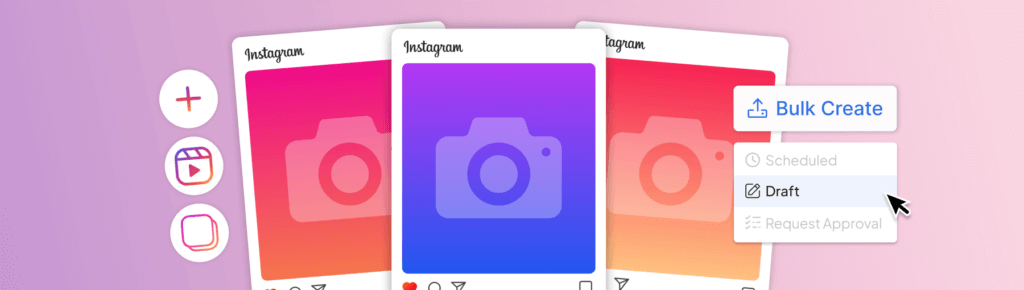
With Hopper HQ, you can upload photos from your computer, organize captions, preview your feed, and schedule posts automatically.
This makes it easier to maintain a consistent content strategy.
Upload multiple Instagram posts at once
Instead of uploading photos one at a time, scheduling tools allow creators to batch upload content.
Batch workflows often look like this:
- Create content for several posts
- Upload images from your computer
- Write captions and hashtags
- Schedule posts throughout the week or month
This approach saves time and keeps content consistent.
Preview your Instagram feed before posting
A visual grid planner allows you to see how posts will look together before publishing.
This helps maintain a cohesive Instagram aesthetic and prevents publishing posts that disrupt the visual layout of your feed.
Why busy professionals prefer posting to Instagram from desktop
Desktop publishing offers several advantages.
• easier caption writing
• faster media uploads
• easier content organization
• ability to manage multiple accounts
For creators and social media managers, desktop tools provide a much smoother workflow than mobile posting.
Upload Instagram photos from PC or Mac with Hopper HQ
Hopper HQ allows you to manage your entire Instagram publishing workflow from your computer.
With Hopper HQ you can:
• upload photos and videos from desktop
• schedule posts automatically
• preview your feed visually
• manage multiple social media accounts
This helps creators and teams maintain consistent posting without needing to publish manually every day.
Start uploading Instagram photos from your computer
Uploading Instagram photos from a computer can save time and simplify your social media workflow.
Whether you are editing content on desktop or planning a full content calendar, desktop publishing makes managing Instagram much easier.
With Hopper HQ, you can upload, organize, and schedule posts from your computer in minutes.
Start your free trial and simplify your Instagram workflow.