







How to Schedule Instagram Reels from PC or Mac (Auto post, no phone)
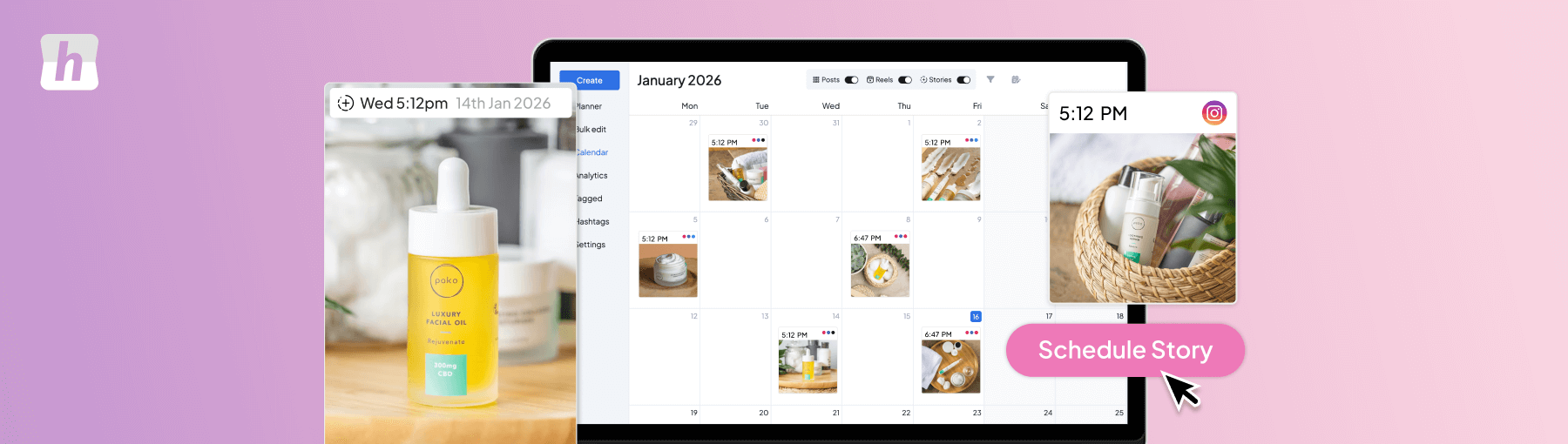
Instagram Reels drive massive growth — but constantly grabbing your phone to post disrupts your workflow, breaks your focus, and makes consistency nearly impossible. The good news: you can schedule Instagram Reels directly from your PC or Mac, with full auto-posting. No phone. No push notifications. No manual steps.
This guide covers exactly how to do it, what to prepare, and the best tools available in 2026.
Can You Schedule Instagram Reels from a PC or Mac?
Quick answer: yes — but not through Instagram itself.
Instagram’s native desktop interface does not support Reel scheduling with auto-posting. You have three options:
| Method | Works on Desktop? | Auto-Posts? | Best For |
| Instagram app | No (mobile only) | Yes | Creators on mobile |
| Meta Business Suite | Yes | Limited | Basic single-account use |
| Hopper HQ (recommended) | Yes — PC & Mac | Yes — fully automatic | Teams, agencies, busy creators |
| ✅ Meta-approved means safe Hopper HQ is a Meta Business Partner, meaning it uses Instagram’s official API. Your account is fully safe — no risk of suspension, no fake engagement. |
What You Need Before You Start
- An Instagram Business or Creator Account (free to switch in settings)
- Your Reel video: vertical 9:16, MP4, up to 90 seconds, 1080×1920px minimum
- Caption, hashtags, and cover thumbnail prepared
- A Hopper HQ account (free trial available)
How to Schedule Instagram Reels from PC or Desktop — Step by Step
Using Hopper HQ’s Instagram Reels scheduler, here’s the full process from your computer:
- Log in to Hopper HQ on your PC or Mac at hopperhq.com
- Connect your Instagram account — follow the secure OAuth flow (Hopper HQ never stores your password)
- Click “New Post” and select Reel as the content type
- Upload your Reel video — drag and drop from your desktop, or import from Dropbox/Google Drive
- Add your caption, hashtags, and select a cover thumbnail
- Use the calendar or grid planner to choose your publish date and time
- Make sure “Auto-post” is enabled — Hopper HQ publishes directly, no phone needed
- Click Schedule — your Reel goes live automatically at the chosen time
| 💡 Pro tip: Bulk scheduling Film all your Reels in one session, then spend 30 minutes in Hopper HQ scheduling your entire month. Batch creation + batch scheduling = maximum efficiency. |
Scheduling Instagram Reels on Mac — Same Process, Zero Issues
Hopper HQ works identically on Mac and PC — it’s browser-based, so no download is required. Safari, Chrome, and Firefox on macOS all work perfectly. If you’re a Mac user who previously thought desktop Reel scheduling wasn’t possible, Hopper HQ solves it completely.
Mac users specifically benefit from:
- No app download needed — works entirely in your browser
- Full compatibility with macOS Ventura, Sonoma, and Sequoia
- Drag-and-drop video upload directly from Finder
- Keyboard shortcuts for faster scheduling across multiple accounts
How to Post Instagram Reels Without Your Phone
The most common pain point for content creators and social media managers is phone dependency. Every time you need to post, you’re interrupted, breaking deep work and creating inconsistency. Hopper HQ eliminates this entirely:
- Plan and schedule all Reels from your desktop — no phone required at any point
- Auto-posting publishes directly to Instagram — no push notifications, no approvals
- Schedule days, weeks, or months in advance in one session
- Get notified by email when posts go live — never have to check manually
Benefits of Desktop Reel Scheduling
- Save hours weekly — batch scheduling vs. daily manual posting
- Post more consistently — planned content never gets forgotten
- Better timing — schedule at peak engagement hours even if you’re asleep or in meetings
- Manage multiple accounts — handle all client accounts from one dashboard
- Collaborate with your team — assign, review, and approve posts without shared passwords
- Visually plan your feed — preview how your grid looks before anything goes live
Best Practices for Scheduling Reels
- Stick to 9:16 vertical format — always. Horizontal or square Reels underperform significantly.
- Post 3–5 Reels per week minimum for sustained growth
- Write captions before you schedule — don’t rush it at scheduling time
- Test different posting times using Hopper HQ’s analytics and your Instagram Insights
- Add on-screen text to your Reels — most users watch without sound, especially in feed
- Batch-create content monthly: film everything in one or two sessions, then schedule all at once
Ready to Post Reels From Your Desktop?
Try Hopper HQ free for 14 days. Schedule your first Reel from your PC or Mac in under 5 minutes. Start your free trial at hopperhq.com.
Common Questions About Scheduling Instagram Reels
Can Instagram Reels be auto-posted?
Yes. With a Meta-approved tool like Hopper HQ, Reels publish fully automatically at your chosen time — no phone, no push notification, no manual step.
Is scheduling Reels safe for my account?
Absolutely, when using Meta-approved partners like Hopper HQ. These tools use Instagram’s official API and follow all platform rules. There is no risk of account suspension or reduced reach.
Do scheduled Reels get less reach?
No. Instagram treats auto-posted Reels identically to manually posted ones. Reach depends on content quality, engagement signals, and audience fit — not the posting method.
Can I schedule Reels from a Mac?
Yes. Hopper HQ is entirely browser-based, so it works on any Mac (Safari, Chrome, Firefox) without any download. The experience is identical to PC.
Can I edit a scheduled Reel before it goes live?
Yes. Log back into Hopper HQ before the scheduled time and edit the caption, hashtags, thumbnail, or posting time. You can also delete or reschedule it entirely.
Can I schedule Reels for multiple Instagram accounts?
Yes. Hopper HQ supports unlimited Instagram accounts in one place, making it the go-to tool for agencies and managers who handle multiple clients.
Take your social game further with Hopper HQ.
Plan, schedule and auto-post to every channel in one place. Free for 14 days · Cancel anytime.