TikTok might be the most phone-centric platform out there, but that doesn’t mean you have to manage it from your phone. Whether you’re filming content on your mobile device or receiving files from team members, you can upload, schedule, and publish TikTok videos directly from your desktop or laptop. Updated April 2026.
Scheduling TikTok posts from desktop saves you time, keeps your content strategy consistent, and lets you plan your uploads weeks in advance. In this guide, we’ll walk you through both methods: TikTok’s native scheduler and third-party tools that give you even more control.
Can you schedule TikTok posts from a desktop?
Yes, absolutely. You have two main routes to schedule TikTok videos from your computer.
The first is TikTok’s native scheduler, which is built into the platform and completely free. If you have a Business or Creator account, you can log in to tiktok.com on your desktop, upload a video, write your caption, and schedule it to post at a specific date and time.
The second option is a third-party scheduling tool like Hopper HQ, which offers more features and works with all account types. You’ll get a content calendar, the ability to schedule across multiple platforms at once, and more reliable posting.
How to schedule TikTok posts from desktop using TikTok’s native tool
Here’s the step-by-step process:
- Go to tiktok.com in your web browser and log in with your account credentials.
- Click the upload icon (a cloud or arrow symbol) in the top right corner of the page.
- Select your video file from your computer and wait for the upload to finish.
- Add your caption, hashtags, cover image, and any other settings you want (like turning off comments or restricting who can share your video).
- Toggle the “Schedule video” option and select your preferred date and time for posting.
- Click “Schedule” and you’re done. Your video will publish automatically at the chosen time.
Know the limitations:
- Creator and Business accounts only. You’ll need to switch from a personal account if you want to use this feature.
- Only 10 days in advance. TikTok’s scheduler caps you at scheduling videos up to 10 days ahead, so long-term planning requires a different approach.
- No bulk scheduling. You’ll schedule videos one at a time through the web interface.
- TikTok only. The native scheduler doesn’t touch your Instagram, Facebook, or LinkedIn accounts, so you’d need to upload separately to those platforms.
- Reliability issues. TikTok’s scheduler has been known to have hiccups where videos don’t publish on time or fail silently.
How to schedule TikTok posts from desktop with Hopper HQ
If you need more reliability, features, or the ability to schedule beyond 10 days, a multi-platform tool like Hopper HQ is a solid choice.
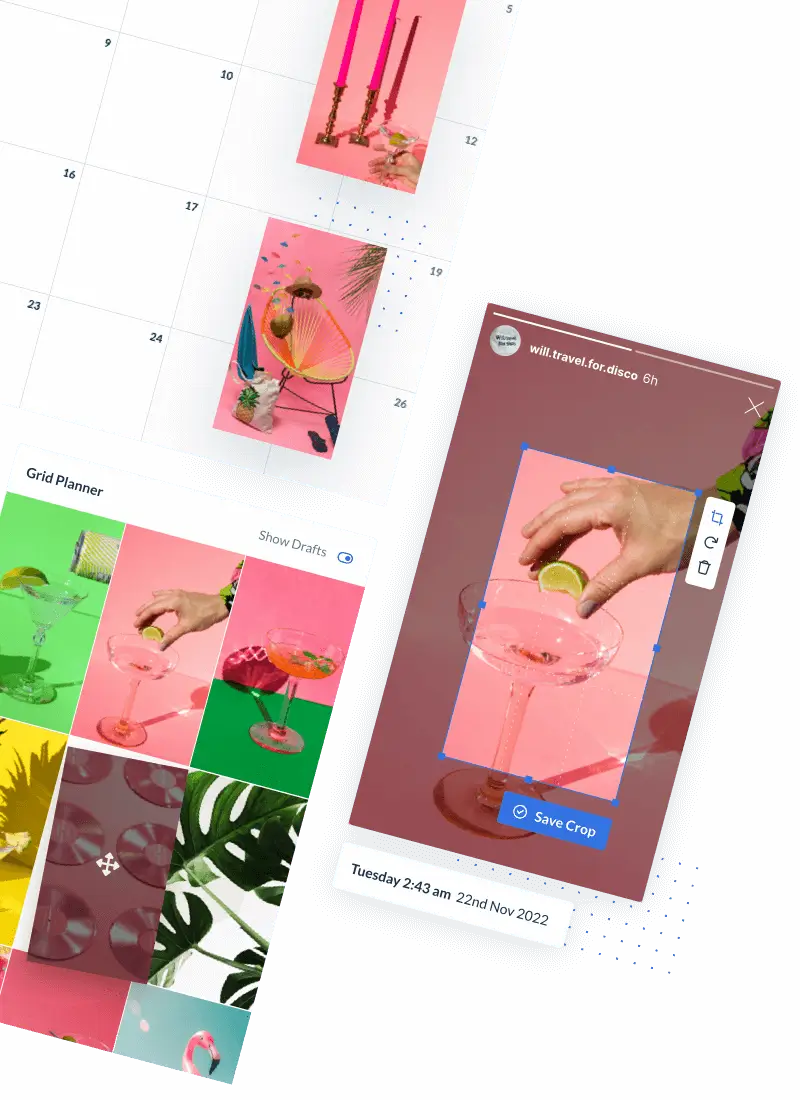
With Hopper HQ, you can upload your video directly from your desktop, write your caption and add hashtags, select your posting date and time, and let the tool handle publication automatically. You won’t get a notification on your phone telling you the video posted. Instead, you can check your content calendar anytime to see what’s scheduled, what’s live, and what’s coming up.
Here are some key advantages:
- Schedule the same video to TikTok, Instagram, Facebook, and LinkedIn all at once. This saves you from uploading and writing captions multiple times.
- Schedule further out. Unlike TikTok’s 10-day limit, you can plan weeks or even months of content in one session.
- Works with all account types. You don’t need a Creator or Business account to use Hopper HQ’s scheduling features.
- Visual content calendar. See your entire TikTok schedule at a glance, rearrange posts, or edit captions without reposting.
- Get started with Hopper HQ’s TikTok scheduler here. You can try it free to see if it’s right for you.
Tips for scheduling TikTok from your desktop
To get the most out of desktop scheduling, keep these tips in mind:
Film and transfer. Shoot your videos on your phone, edit them if needed using TikTok’s editing tools or a mobile video editor, then transfer the files to your computer via AirDrop, Google Drive, cloud storage, or USB. This gives you the best of both worlds: mobile shooting and desktop scheduling.
Write captions on your desktop. Typing longer captions with multiple hashtags is much faster on a keyboard than on your phone. Take advantage of the desktop experience when you’re composing your TikTok copy.
Post at your best times. Consistency and timing matter on TikTok. Check out our guide to the best times to post on TikTok here to find out when your audience is most active.
Batch schedule your content. Rather than logging in daily to schedule one video at a time, dedicate 30 minutes once a week to schedule a week’s worth of content. This saves time and keeps your content strategy top-of-mind.
Keep file sizes in check. TikTok’s desktop upload limit is 4GB per video, so you’ve got plenty of room. But for faster uploads, try to keep videos under 1GB if possible.
Can you edit TikTok videos from a desktop?
Technically yes, but practically, not very much. TikTok’s desktop editing tools are basic compared to what you get in the mobile app.
On the web version of TikTok, you can trim your video, select a cover image, and add a caption. But you can’t layer text animations, add effects, sync to sounds, or do any of the creative edits that TikTok is famous for. Those features live in the mobile app.
Our recommendation: film and edit on your phone where you have access to TikTok’s full creative suite. Once your video is polished and ready, transfer it to your desktop and schedule it from there. This workflow lets you create with all the bells and whistles, then manage your posting schedule efficiently from your computer.
Frequently Asked Questions
Can I schedule TikTok posts from my laptop for free?
Yes. TikTok’s website (tiktok.com) has a free built-in scheduler for Business and Creator accounts. It lets you schedule posts up to 10 days in advance from any desktop or laptop browser. No subscription needed.
Why won’t TikTok let me schedule posts on desktop?
TikTok’s scheduling feature is only available for Business or Creator accounts. If you have a personal account, you’ll need to switch to a Business account (it’s free and takes just a few minutes in your settings). Alternatively, a third-party tool like Hopper HQ works with all account types and offers more scheduling flexibility.
Does scheduling TikTok posts affect views?
No. TikTok’s algorithm doesn’t penalize scheduled posts. What affects your views is content quality, posting consistency, and posting at times when your audience is active and engaged. Scheduling helps you stay consistent, which is actually a win for your performance.
Can I schedule TikTok videos and post to Instagram at the same time?
Yes, but not with TikTok’s native tool. A multi-platform scheduler like Hopper HQ lets you schedule the same video to TikTok and Instagram (as a Reel) from one place in a single session, saving you from uploading twice and writing duplicate captions. You can also schedule to Facebook and LinkedIn at the same time. Check out the content planner at hopperhq.com/plan/ to see how it works.
Scheduling your TikTok posts from desktop saves you time and keeps your content strategy on track. Whether you use TikTok’s native scheduler or a tool like Hopper HQ, the ability to plan ahead and batch your content is a game changer for small business owners, creators, and marketers. Get started with Hopper HQ’s TikTok scheduler here.