





How to Schedule Social Media Posts from Desktop: The Complete Guide (2026)

Most social media tools are designed around your phone. But your desktop is actually the better place to manage social media. You get a bigger screen, a real keyboard, and a chance to think strategically instead of reacting in the moment. If you’re looking to schedule social media posts from desktop across all the major platforms, this guide covers every option from Instagram and TikTok to Facebook and LinkedIn. We’ve updated this for May 2026.
The truth is, moving your social media workflow from mobile to desktop changes everything. You can batch plan a week of content in a single sitting, write better captions, see your full content calendar at once, and avoid the endless distraction of phone notifications. Whether you want to use native tools on each platform or bring everything into one unified scheduler, you’ll find a workflow that works for your team.
Why manage social media from desktop?
There are several solid reasons to shift your social media planning to desktop:
- Batch efficiently: Plan a week or month of content in one sitting instead of scrambling for posts throughout the week.
- Write better captions: A real keyboard makes it easier to craft thoughtful, on-brand content instead of typing on your phone.
- See your full content calendar: View all your platforms, dates, and content types at once so you can spot gaps and plan strategically.
- Fewer distractions: Desktop work keeps you away from the constant notifications and temptation to scroll while you’re planning.
- Easier file management: Upload images, resize graphics, and organize your media library without fumbling with file systems on mobile.
Can you schedule all social media platforms from desktop?
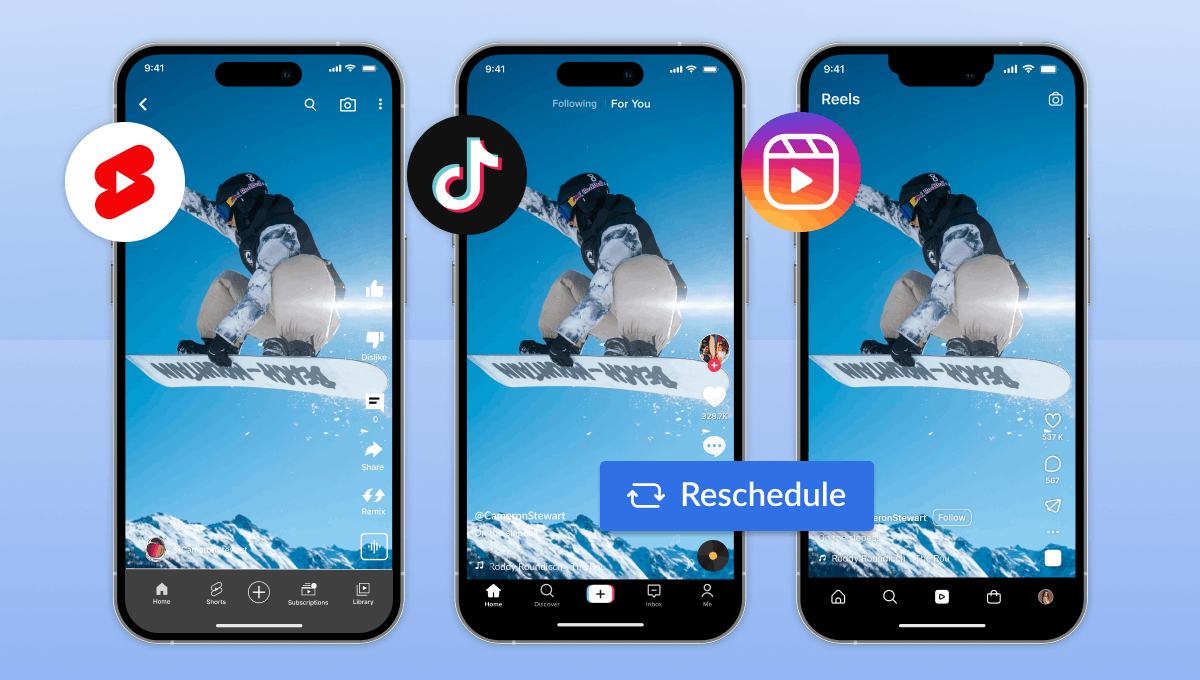
Yes, with the right tool. Most major social platforms now support desktop scheduling, either through their native interfaces or Meta Business Suite. Here’s what’s available:
- Instagram: yes (native and third-party tools)
- TikTok: yes (native scheduler limited to 10 days; third-party tools offer more flexibility)
- Facebook: yes (native scheduler and Meta Business Suite)
- LinkedIn: yes (native LinkedIn scheduler)
- Pinterest: yes (Pinterest scheduler and third-party tools)
- Twitter/X: yes (native composer or third-party schedulers)
The challenge is managing all of these separately. Logging into Instagram’s native scheduler, then TikTok’s desktop uploader, then Meta Business Suite for Facebook gets old fast. This is where a multi-platform desktop scheduler comes in, letting you manage everything from one place.
How to schedule social media posts from desktop — by platform
Instagram supports desktop posting and scheduling. You can use instagram.com directly to schedule posts, or use a dedicated scheduler for more control and analytics. For a complete walkthrough of posting and scheduling on Instagram from your desktop, check out our detailed guides:
How to post on Instagram from desktop, read here.
How to schedule Instagram posts from computer, read here.
Want to schedule Instagram Stories? Click here.
TikTok
TikTok’s desktop uploader is built into tiktok.com. You can upload videos and schedule them up to 10 days in advance directly from your computer. If you need more flexibility, longer scheduling windows, or want to manage TikTok alongside your other platforms from one dashboard, a third-party scheduler is worth considering.
For the full rundown, see here.
Facebook lets you schedule Page posts directly from your Page, or through Meta Business Suite. Both options are desktop-friendly and give you full control over scheduling. Meta Business Suite is especially useful if you manage multiple platforms under one business account.
LinkedIn has a native post scheduler built into the desktop interface. You can upload images, write your post, and schedule it for any time you want. For anyone managing LinkedIn alongside Instagram, TikTok, or Facebook, a multi-platform scheduler makes the workflow much faster.
Pinterest and Twitter/X
Both platforms offer scheduling via their desktop interfaces. Pinterest has its own scheduler, and Twitter/X supports scheduling through its native composer. Third-party tools support both as well if you prefer a unified dashboard.
The case for a dedicated desktop social media scheduler
Managing every platform through its native tool works, but it means jumping between four or five different interfaces. A dedicated social media scheduler keeps everything in one place. Here’s how they compare:
| What you want | Native Tools | Hopper HQ |
|---|---|---|
| Schedule Instagram from desktop | Yes (limited) | Yes |
| Schedule TikTok from desktop | Yes (10-day limit) | Yes |
| Schedule Facebook from desktop | Yes | Yes |
| Visual content calendar | No | Yes |
| Multi-platform in one place | No | Yes |
| Auto-publish (no phone needed) | Sometimes | Yes |
| Team collaboration | No | Yes |
Using native tools works if you manage only one or two platforms. But if you’re managing Instagram, TikTok, Facebook, and LinkedIn, a multi-platform scheduler saves hours every week. You’ll get a single content calendar, team collaboration features, and the ability to publish to all platforms from one place without touching your phone.
Hopper HQ covers all these platforms in one visual, desktop-based interface. Check out the content planner at hopperhq.com/features/plan/ to see how it works.
How to set up desktop social media scheduling with Hopper HQ
Getting started is straightforward:
- Sign up for Hopper HQ at hopperhq.com. You’ll get a free 14-day trial. Payment is only taken after the trial ends.
- Connect your social accounts. You can add Instagram, TikTok, Facebook, LinkedIn, and more in a few clicks.
- Open the content calendar and choose your first scheduling slot. Pick the platform and the date you want to publish.
- Upload your content, write your caption, and set your publish time. Our scheduler handles the rest automatically.
- Done. You’re now scheduling from desktop without ever touching your phone for approvals or manual posting.
Tips for desktop social media scheduling
Once you’ve got your desktop scheduler set up, these tips will help you get the most out of it:
Pick one day per week for scheduling. Sunday evenings and Monday mornings work well for most teams. Batch your entire week’s content in one session.
Use a content theme per day to make planning faster. For example: Monday tips, Wednesday behind-the-scenes, Friday customer stories. Themes keep you consistent and your audience knows what to expect.
Repurpose across platforms. Write one piece of content, adapt the caption for each platform, and schedule all versions in one session. A single photo might be an Instagram post, a TikTok video, and a Pinterest pin with minimal changes.
Use your analytics to check which posts performed best. Look at your engagement rates, reach, and saves. Plan more of what works and less of what doesn’t.
Keep your media library organized on your desktop in dated folders. Marketing_May2026, Campaigns_Q2, etc. This makes uploading much faster and keeps your scheduler organized.
Frequently Asked Questions
What is the best free tool to schedule social media posts from desktop?
A: For Instagram and Facebook, Meta Business Suite is the strongest free option. For TikTok, the native tiktok.com scheduler is free. If you need to manage multiple platforms together, Hopper HQ offers a free 14-day trial that covers all major platforms from one desktop interface.
Can I schedule social media posts from a laptop?
A: Yes. Any tool that works on desktop works on a laptop too. It all runs through your browser, so you don’t need to install anything. A laptop is actually the ideal setup for batch scheduling because you get all the benefits of a larger screen and a full keyboard.
Do scheduled social media posts get less reach?
A: No. Scheduling does not reduce reach on any major platform. In fact, consistency tends to improve reach over time. When you post regularly, the algorithm learns that you’re an active account and will recommend your content more often. Scheduling helps you maintain consistency, which is better for your reach than posting sporadically.
What’s the best desktop social media scheduler for small businesses?
A: It depends on your platforms and budget. For Instagram and Facebook only, Meta Business Suite is free and capable. For small businesses managing multiple platforms, Hopper HQ is worth considering. It’s affordable, visual, and handles all major platforms from one desktop interface. You can start with a free trial to see if it fits your workflow.
Moving your social media workflow to desktop makes everything faster and less stressful. You can plan more strategically, write better captions, batch your content efficiently, and spend way less time on your phone. Whether you stick with native tools or move to a unified scheduler, the key is consistency and planning ahead.
If you’re ready to bring all your platforms into one desktop workflow, start a free trial here, and see how it works for your team.
Take your social game further with Hopper HQ.
Plan, schedule and auto-post to every channel in one place. Free for 14 days, no card required.