





How to Rearrange Your Instagram Grid (and Plan It Before You Touch Anything)
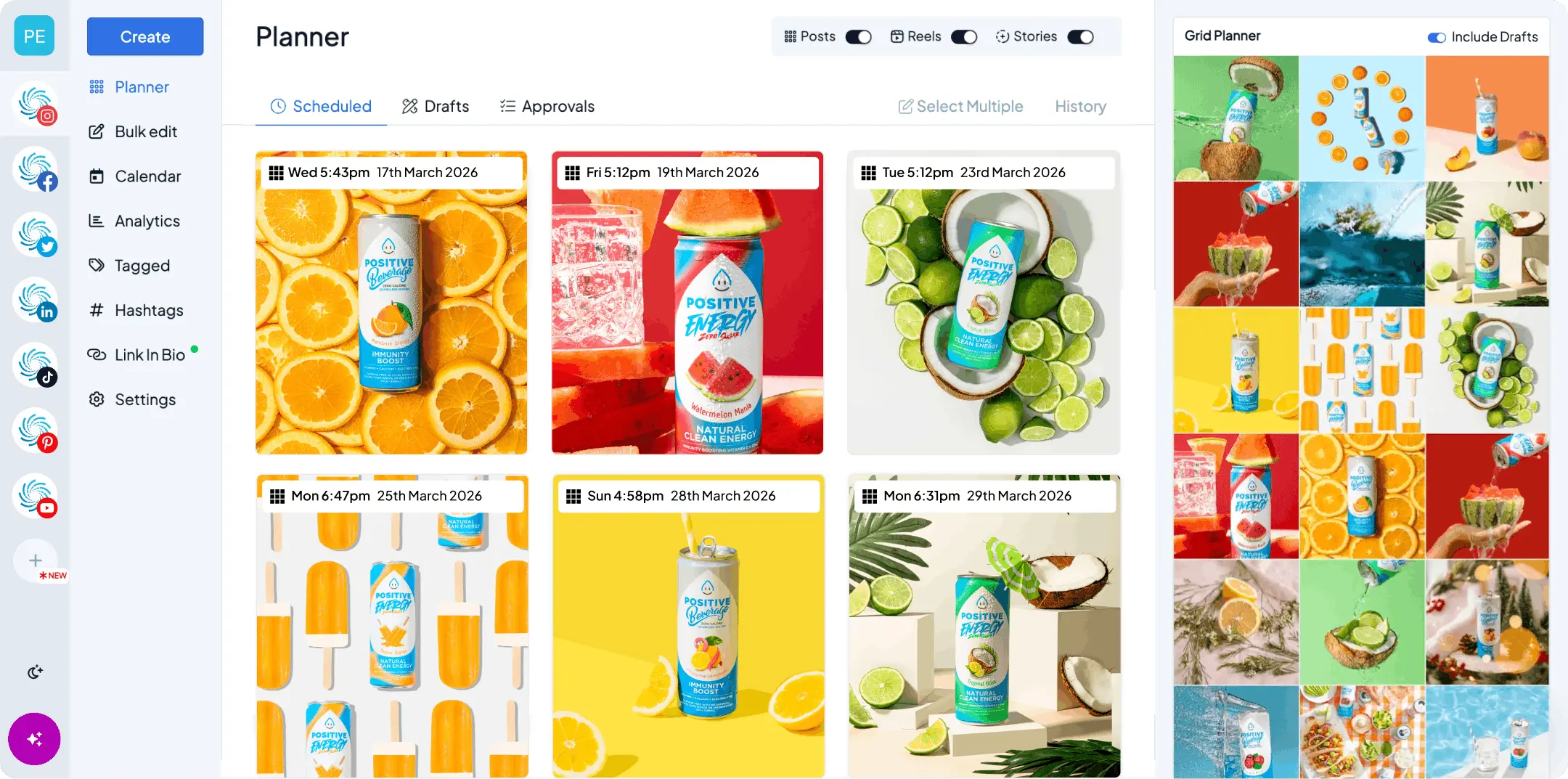
Since 2010 the Instagram grid has had one rule: newest post first, and no arguing. If a strong photo landed next to a weak one, the only fixes were to delete something or post your way out of it.
That ended in June 2026. Instagram added Reorder Grid, so you can now drag posts around your profile without deleting or reposting anything. Here’s how it works, what it won’t do, and why the people who get the best results plan the new order before they open the app.
Start your free 14-day trial →
How to rearrange your Instagram grid
You’ll need the Instagram app on iPhone or Android with the update from June 2026 or later. Then:
- Open your profile and scroll to the grid.
- Press and hold any post until the menu appears.
- Tap Reorder Grid. The grid switches to an editing view.
- Drag posts into the order you want. You can move one at a time, as far up or down as you like.
- Tap Done to save. Your profile updates straight away.
Three things to know before you start:
- Pinned posts stay at the top. If you’ve pinned up to three posts, they hold their spots while you move everything else.
- Post dates don’t change. The original publish date, likes, and comments stay with the post. Nobody’s feed shows it again.
- It’s profile only. The home feed, the Reels tab, and your followers’ timelines are untouched. You’re changing how your profile reads to someone who taps through to it.
What you can and can’t move
| You can | You can’t |
|---|---|
| Drag any unpinned post or Reel to any spot on the grid | Move pinned posts without unpinning them first |
| Group a series or a campaign together | Change the order of the Reels tab |
| Push a seasonal post out of the top rows | Change when a post appears in followers’ feeds |
| Put your strongest post in the first row | Reorder someone else’s grid or a collaboration post on their profile |
Why to plan the order before you touch anything
Reorder Grid is a drag-one-post-at-a-time job on a phone screen. You see three columns and about four rows, you can’t zoom out, and every move shifts everything below it. Try to rework twelve posts that way and you’ll lose track by the fifth.
The fix is to decide the order first, on something that shows you the whole grid at once.
Hopper HQ’s free Instagram grid planner does exactly that. Drop in screenshots of your current posts, or the photos you’re about to publish, and drag them around until the top nine look right. It previews the 3:4 tiles Instagram uses now, so you see the real crop rather than squares. Nothing uploads, there’s no account, and you can download the layout as an image to keep beside you while you reorder.
Once you have the order on screen, Reorder Grid becomes a two-minute job: match the planner, tap Done.
Five reorders that are worth the effort
Most grids don’t need a full reshuffle. These are the moves that change how a profile reads.
- Put a series back together. Part one, part two, and part three posted weeks apart now sit side by side. Tutorials, before-and-afters, and multi-post stories all read better in a row.
- Pull an older winner next to a launch. Launching something new? Drag the post that best explains why it matters up beside it, even if it’s from last year.
- Rebuild a pattern. Checkerboard, row-by-row, and tonal layouts fall apart after a few off-plan posts. Reordering lets you restore the pattern without deleting anything. The planner’s layout examples show the four most common ones.
- Move seasonal posts out of the top rows. A holiday campaign that’s still in the top nine in February tells new visitors you’ve stopped posting. Push it down.
- Lead with your best-performing post. Check your insights, find the post that earned the most saves or profile visits, and give it the top-left spot. That’s the first tile a new visitor sees.
Fix the crop while you’re there
While you’re in the editing view, look at how each post is cropped. Since Instagram moved the grid to 3:4 tiles, square and 4:5 posts lose a strip from each side on the profile. Tap a post, choose Adjust preview, and pick which part of the image shows in the tile.
If you’re not sure which sizes get trimmed, the grid size and ratio guide on the planner page shows the exact crop for 3:4, 4:5, and square posts.
Keep it this tidy next time
Reordering fixes the grid you have. Planning fixes the grid you’re about to post.
Lay out your next nine in the free grid planner, then schedule them with Hopper HQ’s Instagram scheduler in that order. They go live on the dates you choose, in the sequence you chose, and the grid you planned is the grid people see. No dragging required.
Frequently asked questions
Can you rearrange your Instagram grid?
Yes. Since June 2026, press and hold a post on your profile, tap Reorder Grid, drag the posts into the order you want, and tap Done. It works on iPhone and Android, and your followers' feeds don't change.
How do you reorder posts on Instagram?
Open your profile, press and hold any post until the menu appears, choose Reorder Grid, then drag posts into place. Tap Done to save. If you want to see the whole grid before you start, lay it out in Hopper HQ's free Instagram grid planner first.
Does reordering change the post date?
No. Reorder Grid only changes where a post sits on your profile. The original publish date, likes, and comments stay exactly as they were, and the post doesn't reappear in anyone's feed.
Can you move pinned posts?
Pinned posts stay at the top of the grid while you reorder. To move one, unpin it first, then drag it into place like any other post. Reels keep their own order in the Reels tab.
Is there a free tool to plan your Instagram grid?
Yes. Hopper HQ's free Instagram grid planner runs in your browser, with no account and no uploads. Drop in your photos, drag them into order, preview the 3:4 grid, and download the layout. When it's right, schedule it with Hopper HQ so it posts in that order.
Take your social game further with Hopper HQ.
Plan, schedule and auto-post to every channel in one place. Free for 14 days · Cancel anytime.