


How to Manage Multiple Social Media Accounts Without Burning Out
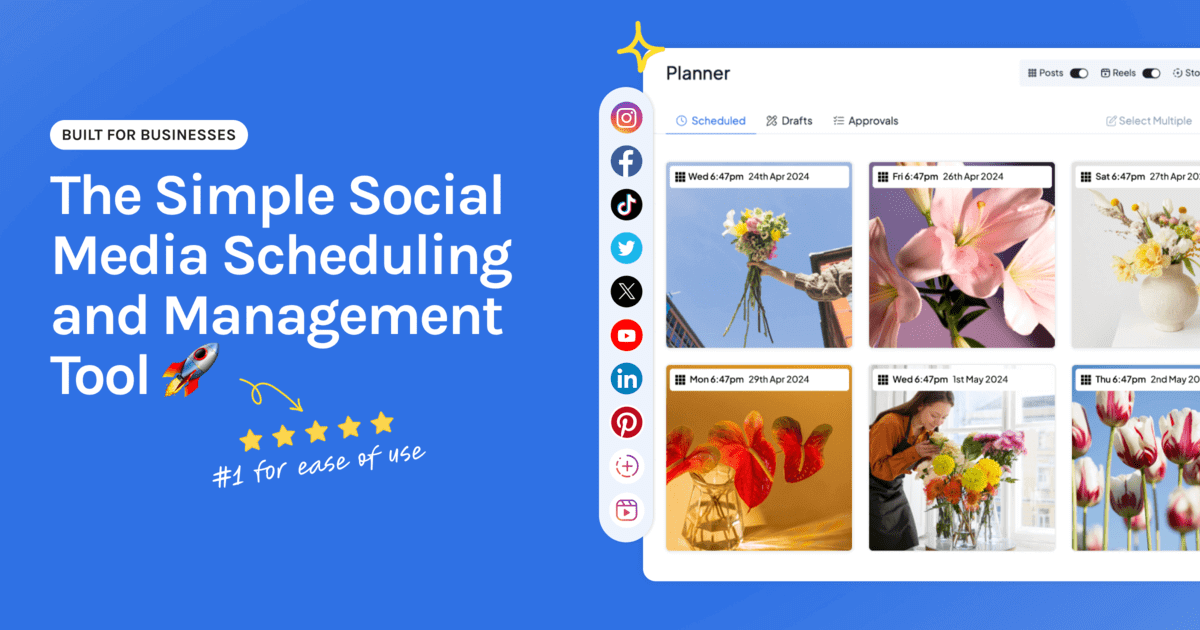
Managing one social media account is a habit. Managing five is a job, and it usually lands on someone who already has one: a business owner, a creator, or a social media manager with a growing client list.
The difficulty is rarely the posting. It’s the switching. Different logins, different formats, different voices, and the quiet worry that you’ve just published a client’s post from your own account. This guide gives you a system that takes the switching out.
Start your free 14-day trial →
The short answer
- Put every account in one calendar.
- Give each account a clear job.
- Plan one account at a time.
- Create in batches.
- Schedule in bulk and let it publish.
- Reply and review at set times.
The rest of this guide explains each step.
Why multiple accounts feel harder than they should
Each account by itself is manageable. Together they cost you in three ways.
- Switching. Every login, and every change of voice, takes a moment to adjust to. Those moments add up to hours.
- Remembering. With no single view, your own memory becomes the calendar, and gaps appear.
- Risk. The more accounts on your phone, the more likely a post goes to the wrong one.
A good system removes all three. It doesn’t ask you to work faster.
Step 1: Put every account in one calendar
This is the change that makes the biggest difference. When Instagram, TikTok, LinkedIn, and Facebook all sit in one view, you can see the whole week: which accounts are busy, which are quiet, and where two posts collide.
You have three options:
| Option | Cost | Trade-off |
|---|---|---|
| Each network’s own scheduler | Free | A separate calendar for every network |
| A spreadsheet plus manual posting | Free | You still publish everything by hand |
| One scheduler for every account | From a few dollars a month | One view, and posts publish themselves |
If you only use Facebook and Instagram, Meta’s free tool may be enough. Our guide to whether Meta Business Suite is enough helps you decide.
Step 2: Give each account a clear job
Accounts blur together when they all do the same thing. Write one line for each:
- Who it’s for.
- What it’s for: selling, teaching, building trust, or showing your work.
- How often it posts.
For example, Instagram shows the product three times a week, LinkedIn shares what you’ve learned twice a week, and TikTok shows behind the scenes when you have something worth filming. Once each account has a job, deciding what goes where gets much faster. A social media content plan helps you set this up.
Step 3: Plan one account at a time
Don’t plan Monday across every account and then Tuesday. Plan one account’s whole week or month, then move to the next. You stay in one voice and one audience, and you pay the cost of switching once per account, not once per post.
If you manage clients, plan one client at a time for the same reason.
Step 4: Create in batches
Write all the captions in one sitting. Make all the graphics in another. Resize everything together. Batching by task is quicker than finishing one post at a time, because you stay in one mode.
When one idea suits several accounts, adapt it. The same video can go to TikTok, Reels, and YouTube Shorts with a caption written for each. Our guide to repurposing social media content shows how to turn one idea into a week of posts.
Step 5: Schedule in bulk and let it publish
Upload the batch in one go, drop the posts onto the calendar, and turn on auto-publishing. This matters more with several accounts than with one. If each post sends a reminder to your phone, five accounts means five interruptions at five different times.
In Hopper HQ, that’s bulk upload, a drag-and-drop calendar, cross-posting with a caption for each network, and auto-publishing for posts, Reels, Stories, and videos. For a full walkthrough, see how to schedule social media posts.
Step 6: Reply and review at set times
Scheduling handles the publishing. Replying still needs you, so give it edges.
- Two short reply sessions a day beat checking every notification as it arrives.
- One review a month per account. Look at what performed well and plan more of it. Analytics will show you the best times to post for each account.
How to avoid posting to the wrong account
It’s the mistake everyone managing several accounts fears. Four habits prevent it.
- Name accounts clearly, by brand or client.
- Schedule ahead from a computer, where you can see which account you’re in.
- Check the account and the preview before you confirm.
- Keep personal posting separate. Post to your own accounts from the app, and to work accounts from your scheduler.
A weekly routine for multiple accounts
| When | What | Time |
|---|---|---|
| Once a month | Plan and batch each account’s content | About an hour per account |
| Once a month | Bulk upload and schedule | 15 minutes per account |
| Daily | Two reply sessions | 10 to 15 minutes each |
| Once a month | Review results and adjust | 10 minutes per account |
The times will vary with how much you post. What matters is that the work happens in planned blocks instead of scattered moments.
What it costs to manage several accounts in one place
Hopper HQ charges per connected account, at the same rate for every account, with every feature included.
| Accounts | Grow, billed annually |
|---|---|
| 2 | $10 a month |
| 4 | $20 a month |
| 6 | $30 a month |
If other people need to log in or approve posts, Scale is $10 per account with unlimited users. Every plan starts with a free 14-day trial. Our guide to the cheapest social media schedulers compares how other tools charge.
The bottom line
Managing multiple accounts gets lighter when you stop treating each one as a separate job. One calendar, one account at a time, one batch, one upload. Then the month runs, and your time goes on the part that needs a person: talking to people.
Managing accounts for clients? See the best schedulers for social media managers. Running several Instagram profiles? See how to manage multiple Instagram accounts.
Frequently asked questions
How do you manage multiple social media accounts?
Put every account in one calendar, plan one account or client at a time, batch your content creation, schedule in bulk, and let posts publish on their own. Then set fixed times to reply and review results, so social media has edges instead of filling the whole day.
What is the best tool to manage multiple social media accounts?
One that shows every account in a single calendar and publishes for you. Hopper HQ covers Instagram, TikTok, Facebook, LinkedIn, X, Pinterest, Threads, Bluesky, and YouTube Shorts for $5 per connected account per month on Grow, billed annually. If you only use Facebook and Instagram, Meta Business Suite is free.
How many social media accounts can one person manage?
There's no fixed number. It depends on how often each account posts and how much replying is involved. With batching and scheduling, one person can comfortably run several active accounts. Without them, two or three can feel like too many.
How do I avoid posting to the wrong account?
Name each account clearly, work on one account at a time, and check the account name and preview before you schedule. Scheduling in advance helps most, because you review posts calmly instead of publishing in a hurry from your phone.
Should I post the same content to every account?
Share the idea, adapt the post. The same photo or video can go to several networks, but each one needs its own caption length, tone, and format. A scheduler with cross-posting lets you adjust each version without starting again.
Can I manage multiple social media accounts for free?
Yes, up to a point. Each network has its own free scheduler, and some tools have limited free plans. You'll be working in several places, though, which is the problem a single calendar solves.
Take your social game further with Hopper HQ.
Plan, schedule and auto-post to every channel in one place. Free for 14 days · Cancel anytime.