





How to Schedule LinkedIn Content and Build a Consistent Posting Routine
LinkedIn rewards people who show up. Not every day, and not with a viral post every week, but regularly enough that your name becomes familiar to the people you want to reach.
The trouble is that showing up regularly is exactly the part that falls apart when you’re busy. One week you post three times. The next, client work takes over and you post nothing. Then you post again and wonder why it landed with a thud.
This guide fixes that. You’ll set up a routine you can keep, schedule it so it runs without you, and use your numbers to work out why some posts land and others don’t.
Start your free 14-day trial →
What this guide covers
- Scheduling vs manual posting, and which platform to use for LinkedIn
- How to automate your LinkedIn posting schedule in five steps
- Which post formats are earning engagement right now
- How to write hooks that get people past “see more”
- Why your LinkedIn posts might be getting zero engagement, and how to diagnose it
- How to use analytics to improve month by month
The short version: Pick two to five weekly slots, give each one a recurring post type, batch-write a few weeks of posts in one sitting, and schedule them to auto-publish. Then spend your LinkedIn time where it counts: replying to comments in the first hour after each post goes live, and checking your analytics once a month to see what to do more of.
Scheduling vs manual posting on LinkedIn
Posting manually feels more authentic. You write something, you hit publish, you’re there for the replies. The problem isn’t the posting. It’s everything around it: remembering to post, finding the time on a Tuesday morning, and writing something good under pressure while your inbox fills up.
Scheduling moves the hard part to a time you choose. You write when you’ve got focus, and the posts go out when your audience is around.
| Posting manually | Scheduling in advance | |
|---|---|---|
| Consistency | Depends on how busy your week is | Set once, holds through busy weeks |
| Quality | Often written in a rush | Written in focused batches, edited before it goes live |
| Timing | When you remember | When your audience is active |
| Overview | Hard to see your mix | Whole month visible on a calendar |
| Engagement | You’re usually there for replies | You need to plan to be there for replies |
That last row is the one to take seriously. Scheduling doesn’t hurt reach on its own. There’s no evidence LinkedIn demotes posts published through its official API, which is how a proper scheduler publishes. What hurts reach is a post that goes live while nobody’s around to reply to the first comments. So schedule the posts, and also schedule yourself: put 15 minutes in your calendar right after each one publishes.
Which platform works best for scheduling LinkedIn content?
You have two real options: LinkedIn’s built-in scheduler, or a dedicated scheduling tool.
LinkedIn’s native scheduler sits in the post composer for personal profiles and company pages. It’s free, and if you post to one account and nothing else, it’s enough to get started. It schedules one post at a time, though, and there’s no calendar to see your month, no bulk upload, and no way to plan LinkedIn alongside your other channels.
A dedicated scheduler earns its place once any of these are true:
- You post to a personal profile and a company page
- You manage LinkedIn for clients or for more than one brand
- You post on other networks too and want one calendar for all of it
- Someone else needs to review posts before they go live
- You want to batch a month at a time rather than one post at a time
When you compare tools, check for these five things:
- True auto-publishing to profiles and company pages. The post should go live on its own, not send you a reminder to finish the job.
- A visual calendar. You’ll move posts around constantly. Dragging a post to a new day should take a second.
- Bulk upload. Writing a month of content is only fast if uploading it is fast too.
- Approvals. If a teammate or client signs off on posts, that needs to happen inside the tool, not over email.
- Analytics in the same place. You’ll make better scheduling decisions when your results sit next to your calendar.
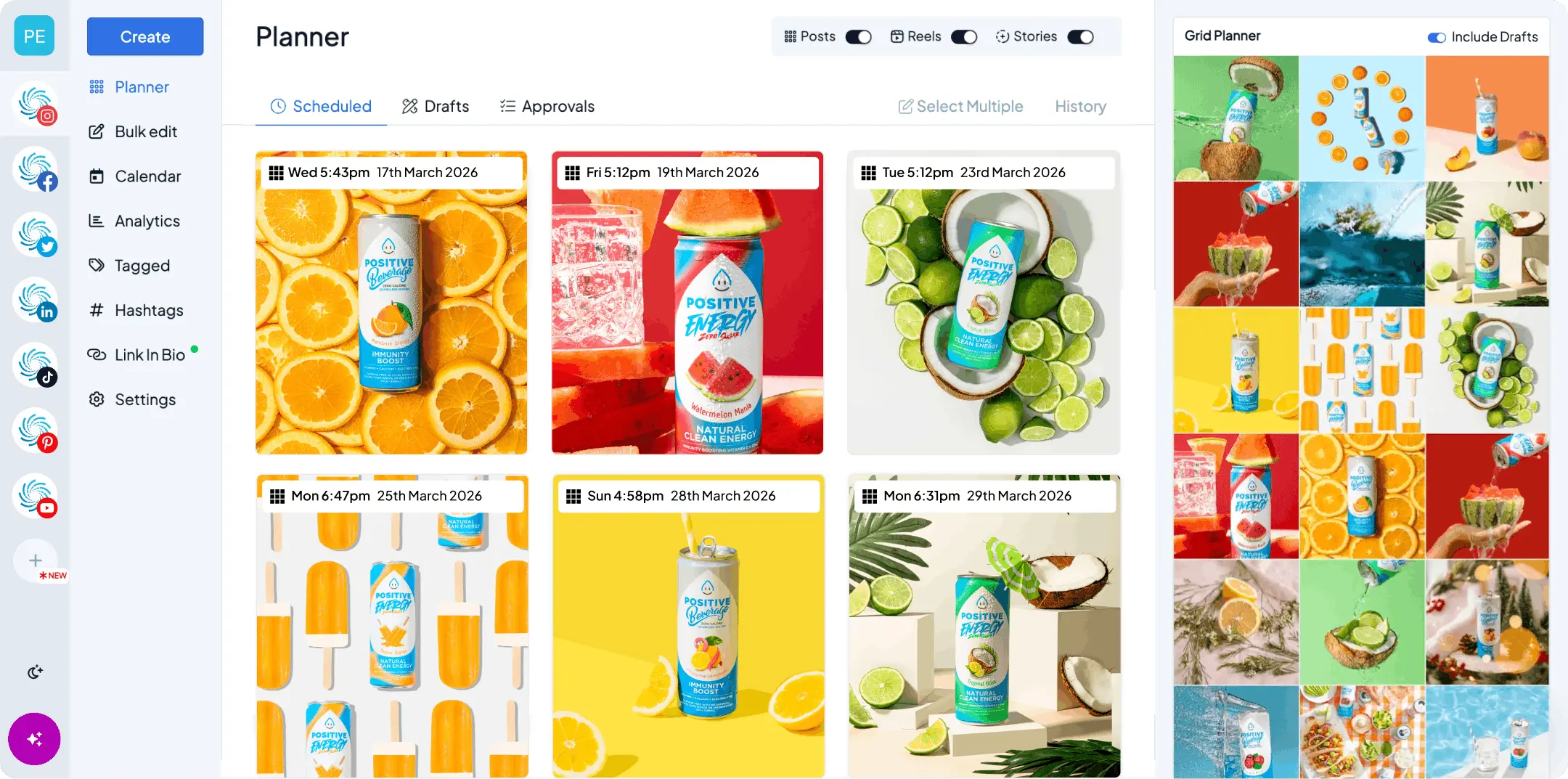
Hopper HQ’s LinkedIn scheduler covers all five. It auto-publishes to personal profiles and company pages, shows every account on a drag-and-drop calendar alongside Instagram, TikTok, Facebook, and the rest, supports images, carousels, and video, and includes team approvals and post-level LinkedIn analytics.
How to automate your LinkedIn posting schedule in five steps
Automation here means one thing: your posts go out on time without you having to be there to press the button. Here’s how to set that up so it lasts.
1. Pick a cadence you can keep for three months
Two to five posts a week is a sensible range for most people and brands. Buffer’s analysis of more than two million LinkedIn posts from 94,000 accounts found that posting two to five times a week brings clear gains in reach and engagement per post compared with posting once a week. Posting more often helped further, but only for accounts that could keep the quality up.
Pick the lower end if you’re starting from nothing. Three good posts a week that you hold for a quarter will do far more than daily posts for a fortnight followed by silence.
2. Give each slot a recurring job
A blank slot is where routines die, because every post starts with “what should I write?” Remove that question by giving each slot a fixed type:
| Slot | Post type | Example |
|---|---|---|
| Tuesday | Teach something | A short how-to from your day job |
| Wednesday | Show your work | A before-and-after, a client result, a process photo |
| Thursday | Share a point of view | An opinion on a change in your industry |
| Friday (optional) | Behind the scenes | A lesson learned, a team moment, a mistake you fixed |
Now you’re not starting from scratch. You’re filling in a “teach” post or a “show” post, which is a much smaller problem. To map your slots out, copy our free social media calendar template for Google Sheets, or use the content planner to get a two-week plan built around your goals. Our guide to LinkedIn content strategy and post types has more ideas for each slot.
3. Choose your times, then test them
Start with Tuesday to Thursday, mid-morning in your audience’s timezone. That’s where most large datasets agree LinkedIn engagement is strongest. Our best time to post on LinkedIn guide has the full breakdown by day, and there’s a UK-specific version if your audience is British.
Treat those times as a starting point. After a month, your own analytics will tell you more than any benchmark can.
4. Batch a few weeks in one sitting
Block an hour or two, ideally the same time each month. Write every post in one go, then create every image in another. You’ll write faster once you’re warmed up, and you’ll see your mix at a glance, so you catch the week where you’ve accidentally lined up three promotional posts in a row.
If you want the step-by-step version, how to schedule a month of social media posts in one hour walks through the whole batching process.
5. Schedule, then protect your reply time
Upload the batch to your scheduler, assign each post its slot, and check the calendar view before anything goes live. Then add a recurring 15-minute block to your own calendar for each publish time. That’s the one part of LinkedIn you shouldn’t automate.
LinkedIn post formats: what’s working now
Format matters more on LinkedIn than most people expect, because some formats naturally keep people on your post longer.
Social Insider’s 2026 benchmark of more than a million LinkedIn business posts puts native documents (the swipeable PDF carousels) and multi-image posts at the top for average engagement rate, with video close behind. Single images sit in the middle. Text-only posts, polls, and link posts trail at the bottom. You can see the full figures in Social Insider’s LinkedIn benchmarks.
| Format | Best for | Watch out for |
|---|---|---|
| Document or carousel | Frameworks, checklists, step-by-step guides | Text-heavy slides nobody can read on a phone |
| Multi-image | Before-and-afters, event recaps, product details | Images that don’t tell a story in sequence |
| Short video | Explaining an idea, showing a process, a face to the name | Long intros. Get to the point in the first few seconds |
| Single image | Quotes, results, a strong visual with a clear caption | Stock photos that could belong to anyone |
| Text-only | Opinions, stories, lessons learned | Walls of text. Use short paragraphs and white space |
| Poll | Starting a conversation, gathering quick feedback | Polls with no follow-up post sharing the results |
Two practical takeaways. First, don’t abandon text posts. They can still work well for opinions and stories, especially from personal profiles, but they need a strong first line. Second, if you’ve only ever posted text or links, a document or multi-image post is the easiest experiment you can run this month. Check our LinkedIn dimensions and post sizes guide before you design anything.
Hooks: the first two lines do most of the work
On LinkedIn, only the first two or three lines of your post show in the feed before the “see more” link. Those lines decide whether anyone reads the rest, and a click on “see more” is itself a sign to LinkedIn that your post is worth showing to more people.
Five hooks that work reliably:
- The specific result. “We cut our client onboarding from three weeks to four days.”
- The honest mistake. “I posted on LinkedIn every day for a month. It was a mistake.”
- The contrarian take. “Most ‘best time to post’ advice is wrong for small accounts.”
- The useful promise. “Here’s the checklist we use before every client launch.”
- The question your audience is already asking. “Why do some posts get 10 likes and others get 1,000?”
And a few to avoid. Vague openers (“Some thoughts on leadership…”), long preambles before the point, and anything that asks for engagement directly (“Comment YES if you agree”) all tend to underperform. LinkedIn has been clear for years that it demotes engagement bait.
Why do my LinkedIn posts get zero engagement lately?
If your posts used to get decent engagement and now barely move, you’re not imagining it, and it’s probably not only you.
Reach has fallen across LinkedIn. Richard van der Blom’s Algorithm Insights Report, which analyzes more than a million LinkedIn posts each year, found views and engagement per post dropped sharply in 2025, with views down by close to half compared with the previous year. More people are posting, more feed space goes to ads, and LinkedIn is showing posts to smaller, more relevant audiences rather than to everyone in your network. A post that would have reached 2,000 people two years ago might reach 1,000 today, even if it’s just as good.
That’s the baseline. On top of it, these are the most common reasons a post gets nothing:
- The first line gives no reason to keep reading. If nobody clicks “see more” and nobody stops scrolling, LinkedIn takes that as a sign the post isn’t worth showing to more people.
- The post is skimmable and forgettable. LinkedIn pays attention to how long people spend on a post. Generic advice anyone could have written doesn’t hold attention, and neither does content that reads like it came straight out of an AI tool.
- It leans on tactics LinkedIn demotes. Engagement bait, tagging people who have nothing to do with the post, and engagement pods all tend to cost you reach rather than earn it.
- The link is doing the heavy lifting. LinkedIn wants to keep people on LinkedIn. A post that’s mostly a link to somewhere else is one of the lowest-engagement formats on the platform.
- It went out at the wrong time, or you weren’t there. Early replies help a post travel further. If your post goes live at 9pm, or you’re in meetings all afternoon and don’t reply to the first comments, it loses that early lift.
- You’ve gone quiet, then reappeared. Irregular posting makes it harder for your audience to remember you and harder for you to build any momentum. This is exactly what a scheduled routine fixes.
How to diagnose a post that flopped
Open your analytics and look at two numbers: impressions and engagement rate.
| What you see | What it means | What to try |
|---|---|---|
| Low impressions, decent engagement rate | The people who saw it liked it, but not many saw it | Change the time, post more consistently, reply to every early comment |
| Healthy impressions, low engagement rate | Plenty of people saw it and kept scrolling | Rewrite the hook, try a different format, make it more specific |
| Both low | Distribution and content are both off | Go back to your best-performing post and make something similar |
| Both healthy, but no clicks or leads | The post works, but it’s not connected to anything | Add a clear next step that suits the post, without turning it into an ad |
That table is much more useful than guessing at algorithm changes. You can’t control how LinkedIn works. You can control what you post, when you post it, and whether you’re there when people respond.
Engagement signals: what to encourage, what to skip
You’ll see plenty of confident claims about exactly how LinkedIn weighs each signal. LinkedIn doesn’t publish those numbers, so be wary of anyone quoting them precisely. What’s broadly agreed:
- Thoughtful comments matter more than likes. A real back-and-forth in the comments tells LinkedIn the post started a conversation. Reply to every genuine comment, and ask follow-up questions when it fits.
- Time spent on the post matters. Formats that hold attention, like documents and well-paced text, give people a reason to stay.
- Saves and shares are strong signals. Useful content, like checklists and frameworks, gets saved. Write things people will want to come back to.
- Relevance beats raw reach. LinkedIn tries to show your post to people who care about the topic. Posting consistently about a few clear topics helps it work out who those people are.
What to skip: engagement pods, “comment for the PDF” bait, and tagging people for attention. They can produce a short spike and cost you trust and reach over time.
How to use analytics to improve your LinkedIn results
A posting routine only gets better if you look at what it produced. You don’t need a data team for this. You need 30 minutes a month and a few questions.
Once a month, check:
- Your top three posts by engagement rate. What do they share? Format, topic, hook style, day of the week?
- Your bottom three. Same questions. Patterns in your flops are just as useful as patterns in your wins.
- Engagement by day and time. Are your Tuesday posts consistently outperforming Thursday? Move a slot.
- Follower growth. Is your audience growing, and did any particular post bring a spike?
- Clicks, if you’re driving traffic. Which posts sent people to your site?
Then make one change. Swap a weak slot’s post type, test a new time, or turn your best post into a document carousel. One change at a time keeps the results readable. Change everything at once and you won’t know what worked.
Hopper HQ’s analytics show impressions, likes, comments, and engagement rate for each LinkedIn post, next to the calendar you scheduled them from. You can see what’s working, spot your best times, and plan next month’s batch in the same place, then export a report in a click if you need to share results with a client or your boss.
Your LinkedIn routine at a glance
| When | What | Time it takes |
|---|---|---|
| Once a month | Batch-write and schedule the next four weeks | One to two hours |
| Once a month | Review analytics and make one change | 30 minutes |
| Each post day | Reply to comments after your post goes live | 15 minutes |
| A few times a week | Comment thoughtfully on other people’s posts | 10 minutes |
That last row is the one people skip. Commenting on posts from people in your industry is one of the most reliable ways to get your name in front of new people, and it makes your own posts more likely to get engagement back.
The bottom line
Zero engagement usually isn’t a sign that LinkedIn has given up on you. It’s a sign that something in the routine needs adjusting: the hook, the format, the timing, or simply showing up consistently enough for people to notice.
Set your cadence. Give each slot a job. Batch your posts and schedule them to auto-publish. Be there when they go live. Check your numbers once a month and change one thing. Do that for a quarter and you’ll have a LinkedIn presence that runs on a routine, not on willpower.
Start your free 14-day trial of Hopper HQ → and schedule your first month of LinkedIn posts in one sitting. 14 days free, cancel anytime. Or see how the LinkedIn scheduler works.
Frequently asked questions
Which platform works best for scheduling LinkedIn content?
It depends on how many accounts you post to. LinkedIn's own scheduler is free and fine for one profile or one company page, but it schedules one post at a time and has no calendar view. If you post to a personal profile and a company page, manage clients, or post on other networks too, a dedicated scheduler like Hopper HQ is the better fit. It publishes to LinkedIn profiles and company pages automatically, shows every account on one drag-and-drop calendar, and puts post analytics in the same place, so you can see what's working without switching tools.
How do I automate my LinkedIn posting schedule?
Pick a fixed cadence (two to five posts a week suits most accounts), assign each slot a recurring post type, then write and schedule a few weeks of posts in one sitting. Connect your LinkedIn profile or company page to a scheduler that auto-publishes, so posts go live at the set time without a reminder or a manual step. What you shouldn't automate is the conversation: block 15 to 30 minutes after each post goes live to reply to comments yourself.
Why do my LinkedIn posts get zero engagement lately?
Usually it's one of four things. Reach across LinkedIn has fallen for most accounts since 2024, so the same post simply reaches fewer people than it used to. The post may be skimmable rather than readable, with a weak first line that gives nobody a reason to click "see more". It may lean on tactics LinkedIn demotes, like engagement bait or a bare external link. Or it went out when your audience wasn't around and you weren't there to reply. Check your analytics first: if impressions are low, it's a distribution problem. If impressions are healthy but reactions and comments aren't, it's a content problem.
Does scheduling LinkedIn posts hurt reach?
There's no evidence that LinkedIn penalizes posts published through its official API, which is how a proper scheduler publishes. What can hurt a scheduled post is that nobody's around when it goes live. Schedule the post, then be there for the first hour to reply to comments, and you get the consistency of scheduling with none of the downside.
How often should I post on LinkedIn?
Two to five times a week is a sensible starting point. Buffer's analysis of more than two million posts from 94,000 accounts calls two to five posts a week the sweet spot, with clear gains in reach and engagement per post over posting once a week. Accounts that posted even more often saw further gains, but only when quality held up. A cadence you can hold for three months beats a burst you can't.
Should I put links in my LinkedIn posts?
Use them sparingly. LinkedIn wants to keep people on LinkedIn, and link posts consistently land among the lowest-engagement formats in benchmark data. If the link is the whole point, make the post useful on its own first, then share the link. Test link-in-post against link-in-first-comment on your own account rather than trusting a rule, because the evidence on comment links is mixed.
Take your social game further with Hopper HQ.
Plan, schedule and auto-post to every channel in one place. Free for 14 days · Cancel anytime.